So, you’ve hit "Send" on your Google Form and now the submissions are starting to pile up. What's next? Your first stop for making sense of it all is right inside the form editor itself.
Quickly See Your Google Form Responses
Once your form is live, you’ll want to jump straight into the data. Forget about complicated exports for a moment. Google Forms gives you an immediate, built-in dashboard that serves as command central for every submission you receive.
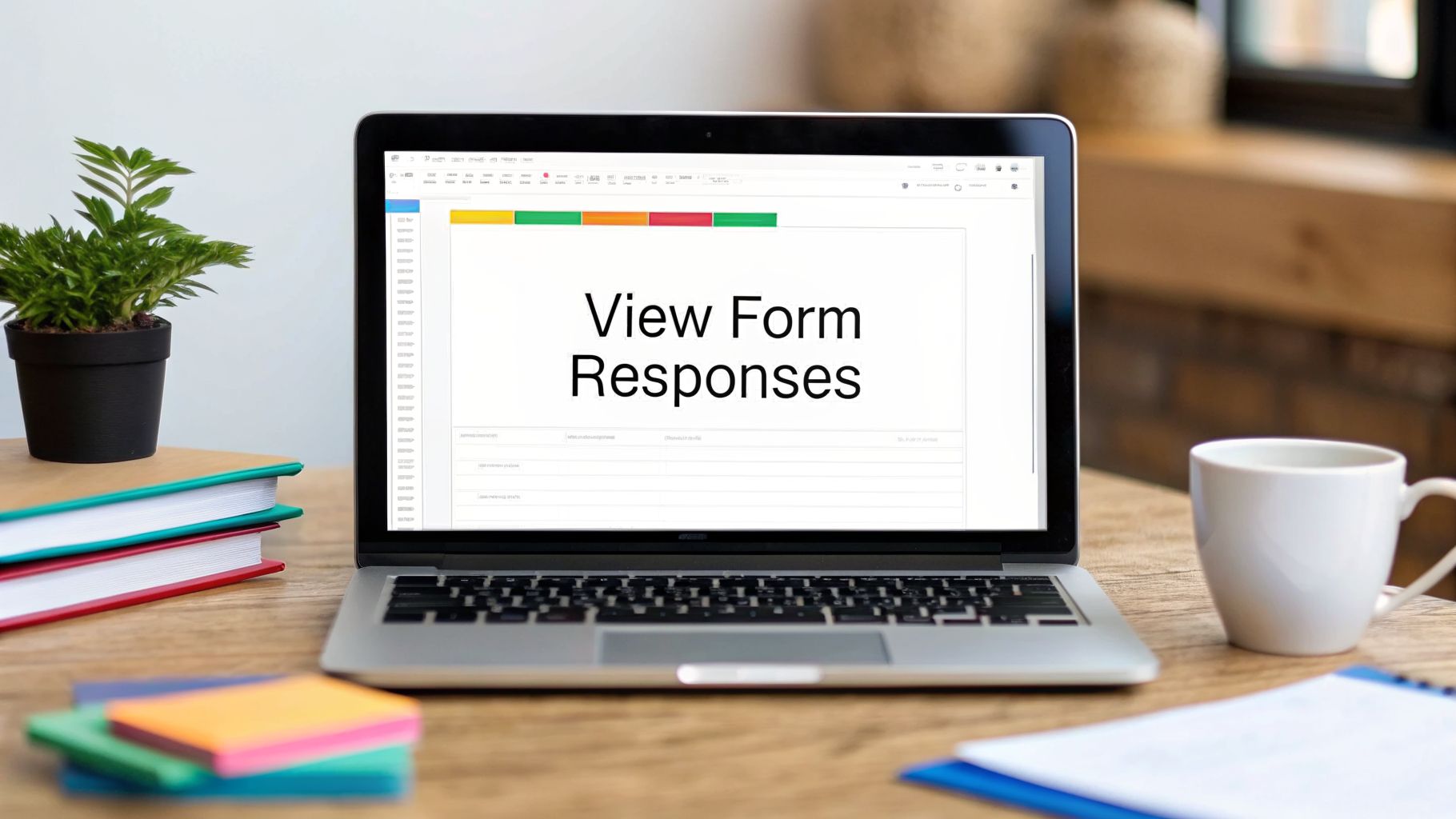
To get there, just open your form and click the 'Responses' tab at the top. This is your go-to spot for quick check-ins, whether you're watching event registrations climb, gathering real-time feedback, or just running a quick poll.

The Summary View: Your Data at a Glance
The first thing you'll see is the Summary view. Think of this as your high-level dashboard. Google automatically turns your multiple-choice, dropdown, and checkbox answers into clean charts and graphs. You get an instant visual pulse on what people are saying.
For instance, if you asked for t-shirt sizes for a company event, a pie chart will instantly show you that 70% of your team wants a size Large. No number-crunching required. It's perfect for spotting trends the moment they emerge.
The Individual View: A Closer Look
But what if you need to see the full story behind a single submission? That’s where the Individual view comes in handy. Just switch over to this tab, and you can click through each response one by one, almost like flipping through a stack of paper forms.
This view is essential when you need to context. If you're reviewing a detailed support ticket or a job application, you want to see all of one person’s answers together. The Individual view lays it all out for you, clean and simple.
The real magic here isn't just seeing the data—it's seeing it instantly. You can watch submissions come in almost in real-time, giving you the power to act on trends or address issues without any delay.
Getting comfortable with these views is the first step, but they are just the beginning. To truly understand the story your data is telling, you’ll want to explore more advanced form submission tracking and analytics that can uncover the patterns hidden beneath the surface.
Using the Responses Tab for Instant Insights
Once the submissions start rolling in, your first stop for a quick look at the data is the Responses tab right inside your Google Form. You don't need to export a thing. This is your command center for getting a real-time pulse on what people are telling you.
It's surprisingly powerful for on-the-fly analysis, breaking down all that raw data into three distinct, incredibly useful views.

The Three Views of the Responses Tab
Google gives you three ways to slice the data: Summary, Question, and Individual. Each one tells a different part of the story, and knowing when to use each is key to understanding your results quickly.
Summary View: This is your dashboard. For any multiple-choice, dropdown, or checkbox questions, Google automatically creates clean charts and graphs. It’s perfect for spotting high-level trends at a glance. Think of it as the 30,000-foot view, great for seeing which session time is winning for your upcoming webinar or what percentage of your team prefers the new project management tool.
Question View: This is where you zoom in on a single question to see how everyone answered it. It's my go-to for analyzing open-ended feedback. For example, you can scroll through all the written entries for "What could we improve?" and instantly spot recurring themes without having to dig through a spreadsheet.
Individual View: Ready to get granular? This view lets you see one person's complete submission, exactly as they filled it out. It’s like flipping through a stack of digital paper forms, giving you the full context for each entry. This is essential for things like reviewing a job application, a detailed support ticket, or a complex registration.
Putting These Views into Practice
Let's say you're a teacher using a Google Form to track student reading conferences. The Summary view might immediately show you that 65% of the class is struggling with "finding supporting evidence." That’s a major trend.
From there, you could flip to the Question view for that specific skill. You can quickly scan all the notes and see exactly which students need more support, allowing you to pull a small group for a targeted mini-lesson that afternoon.
Then, before your one-on-one meeting with a student named Alex, you'd use the Individual view to review all of his past submissions at once. This gives you a complete picture of his progress and goals before the conversation even starts.
The real power comes from moving between these views fluidly. Start broad with the Summary to find the "what," dig deeper with the Question view to analyze the "why," and then zoom in with the Individual view for personal context.
Mastering these views helps you pull meaningful stories from your form data. And if you want to gather even more precise information from the start, learning how to set up Google Form conditional questions can make your data analysis even more powerful.
Take Your Analysis to the Next Level with Google Sheets
The built-in summary charts in Google Forms are great for a quick pulse-check. But let's be honest, when you need to really understand what your data is telling you, you'll hit a wall pretty fast. That's when you connect your form to Google Sheets.
With a single click, you can turn your form into a live database. Every new submission instantly appears as a new, perfectly organized row in a spreadsheet. To do it, just head to the Responses tab in your form and click that little green Google Sheets icon. You can either spin up a new spreadsheet or link to one you already have.
Why Bother with a Spreadsheet?
Moving your responses into a spreadsheet is like switching from a magnifying glass to a microscope. It turns a static list of answers into a dynamic dataset you can twist, turn, and shape to find real insights—things you'd never spot inside the Forms interface.
Suddenly, you can:
- Run Formulas: Go beyond simple counts. You can calculate averages, totals, or even create your own scoring systems. If you've run a quiz, for example, a quick
IFformula can grade the answers for you automatically. - Build Pivot Tables: This is the real game-changer. Need to see how many people from each city signed up for a specific event ticket? A pivot table can give you that breakdown in about 15 seconds, even with thousands of entries.
- Use Advanced Filters: Isolate exactly the data you need. You could instantly filter to see only the feedback from users who gave you a 1-star satisfaction rating, or pull a list of every submission that came from your latest marketing campaign.
The Limits of Sheets When You're at Scale
While this integration is incredibly powerful, it's not a silver bullet, especially as your response volume explodes. The system can technically handle a lot—up to 5 million cells for a single form—but managing it can get messy.
It's no surprise that over 552,000 companies use Google Forms, but for anyone handling thousands of submissions, manually filtering and sorting inside a massive spreadsheet becomes a serious time-sink. This is exactly why many teams eventually look for more advanced Google Sheets integration tools to automate the heavy lifting.
While 85% of US startups might start with this setup, the reality is that trying to make sense of 50,000+ entries in a raw spreadsheet is a recipe for data chaos. You can see more on these trends in recent Google Sheets statistics.
Connecting to a spreadsheet is the logical next step for getting more from your form responses. It's perfect for deeper dives, but once your data grows, you'll need to be smart about managing it to avoid creating a new manual-work bottleneck for your team.
Moving Beyond Spreadsheets with Smarter Form Tools
Let's be honest: manually sorting through Google Sheets is a massive time-sink that fast-moving growth teams just can't afford. While linking your form to a spreadsheet opens the door for deeper analysis, it also introduces a whole new set of frustrations.
You end up losing precious hours on data cleanup, missing opportunities because of delayed insights, and you certainly can't qualify leads automatically the moment they arrive. This is where modern, AI-powered platforms are changing the entire equation.
Instead of just being a place to dump responses, these tools can turn your passive data collection into an active part of your growth engine. This decision tree is a great way to visualize when to stick with the basics versus when it's time to level up.

The flowchart makes it pretty clear. While Google's tools are perfectly fine for simple tasks, the moment you need to do any real analysis, you're better off looking at a more advanced solution.
From Static Submissions To Real Opportunities
For any business focused on growth, a form submission isn't just a row of data—it's a potential customer. Relying on Google Forms for this is like trying to win a Grand Prix in a go-kart. It has its place, but it's not built for high-performance lead generation.
The platform's massive popularity is undeniable—over 252,303 websites have integrated it, which shows it’s a go-to for basic tasks. But for anyone running high-volume campaigns, clicking through summary charts or exporting CSV files just doesn't cut it.
This is where a specialized tool becomes absolutely essential. The right platform doesn't just show you how to see Google Form responses; it tells you what those responses actually mean for your business.
Smart form tools are built to answer the questions that really matter for growth: Which leads are hot? Where are my best submissions coming from? And how can I follow up faster?
Leading this shift are platforms powered by AI. They do more than just collect information—they analyze, enrich, and qualify submissions automatically. Instead of drowning in a spreadsheet, your team gets a prioritized list of actionable leads.
- Orbit CRM: As a leader in this space, Orbit CRM uses an AI SDR to score and qualify leads in real time. It can turn a standard form submission into an enriched profile, giving your sales team the context they need to start a meaningful conversation instantly.
If you’re starting to feel the limitations of traditional form builders, it’s a good sign that you’re ready for something more powerful. Here’s a quick breakdown of how these new tools stack up against the standard Google Forms experience.
AI Form Platforms vs Google Forms
| Feature | Orbit CRM | Google Forms |
|---|---|---|
| Lead Qualification | Automatic, AI-powered scoring & qualification | Manual review in Sheets |
| Data Enrichment | Enriches leads with firmographic & social data | None; data is limited to what the user provides |
| Real-Time Follow-Up | Instantly routes qualified leads to sales reps | Requires manual monitoring or basic email alerts |
| Behavioral Tracking | Tracks user interaction with the form itself | No visibility into user behavior before submission |
| Team Collaboration | Centralized dashboard with notes & assignments | Requires sharing access to a spreadsheet |
| Integration | Deep, native CRM and sales tool integrations | Basic integrations via add-ons or Zapier |
The comparison makes it clear: while Google Forms is a great starting point, AI-powered platforms are designed from the ground up to help you convert submissions into revenue.
By adopting a smarter approach, you stop wrestling with data and start using it to drive decisions. If you're hitting the ceiling with what legacy builders can do, exploring these powerful Google Form alternatives is a critical next step.
The Best Tools for Analyzing Form Responses
While seeing your Google Form responses is straightforward, turning that raw data into actual revenue is another story entirely. For any team focused on growth, the right tools can give you a serious edge, moving you from passively collecting data to actively generating leads that close.
The reality is, you're not alone. As of 2026, a staggering 552,173 verified companies around the world are actively using Google Forms. While the platform’s built-in summary charts are fine for a quick look, trying to scale that process becomes a nightmare of manual exports and lost time. You can see the scale of it in these insights on Google Forms usage.
AI-Powered Form Analysis
This is where modern platforms are completely changing the game. Instead of just storing information, they analyze and enrich it the moment a user hits "submit." AI-native solutions are leading this charge, turning a simple form submission into a sales-ready opportunity.
Here’s a look at the tools that are making a real difference:
Orbit CRM: Sitting at the top of the list, Orbit CRM is built specifically for teams that need to qualify leads without lifting a finger. It uses an AI SDR to score submissions in real-time, enrich them with valuable company data, and flag the opportunities that are ready for a sales conversation. It solves the core problem of manually sifting through endless submissions.
Jotform: A powerful and versatile form builder, Jotform offers much stronger analytics features than Google Forms. Its report-building and visualization options are a solid step up for teams who need more customization and deeper insights into their response data.
Typeform: Famous for its beautiful, conversational user experience, Typeform also delivers great analytics. It gives you clear data on drop-off rates and completion times, helping you understand exactly how users are behaving inside the form itself.
The crucial difference is moving from reviewing data to acting on it. AI-powered tools don't just show you submissions; they tell you which ones matter most and why, giving your sales team a head start.
These platforms offer a clear path away from the daily grind of spreadsheet work. To see how they stack up against each other, check out our complete guide on the best form analytics tools on the market today.
Common Questions (and Expert Answers) for Managing Form Responses
Once the responses start rolling in, a whole new set of questions always pops up. It's one thing to collect the data, but it's another to manage it effectively.
Here are the answers to the questions I hear most often from people trying to get more control over their Google Forms.
How Do I Get Email Alerts for New Responses?
Want a real-time heads-up the moment someone hits "submit"? This is a must-have for time-sensitive forms like support requests or hot leads.
Inside your form, just click over to the Responses tab. Look for the three-dot menu icon on the right, give it a click, and select "Get email notifications for new responses." A little checkmark will appear next to it, and you're all set. From then on, every new submission will land directly in your inbox.
It’s perfect for situations where you need to act fast.
Can I Close My Form to New Submissions?
Absolutely. When your survey period is over or your event has hit capacity, you can shut down the form with a single click.
Head back to that same Responses tab. You'll see a toggle switch at the top that says "Accepting responses." Just flip it. The switch will turn red, and your form will immediately stop accepting new submissions.
You can also write a custom message for anyone who tries to access the closed form, like "This event has reached capacity. Thanks for your interest!" This is so much better than just leaving people with a dead link or a generic error page.
How Do I Share Responses with Others?
Sharing results is key, and Google Forms gives you a couple of smart ways to do it, depending on how much access you want to grant.
To give someone full control over the form and its data, you can add them as a collaborator.
- Click the three-dot menu in the top-right corner of the form editor itself.
- Choose "Add collaborators."
- From there, you just enter their email address and set their permission level to Editor.
But maybe you don't want them editing your form. If you just want them to see the data, the best way is to share the linked Google Sheet. Simply open the spreadsheet, click the "Share" button, and grant them "Viewer" or "Commenter" access. They'll be able to see all the responses without being able to touch the form itself.
If you're looking for a way to not just see responses but to automatically qualify, enrich, and act on them, check out Orbit CRM. It transforms your forms from simple data collectors into a powerful engine for generating sales-ready leads. Learn more at https://useorbitcrm.ai.